
How to save tabs in Chrome
Bookmarks turn into a junk drawer. Keeping everything open burns memory. A better middle ground: save tabs into named folders inside spaces, and reopen them when you need them.
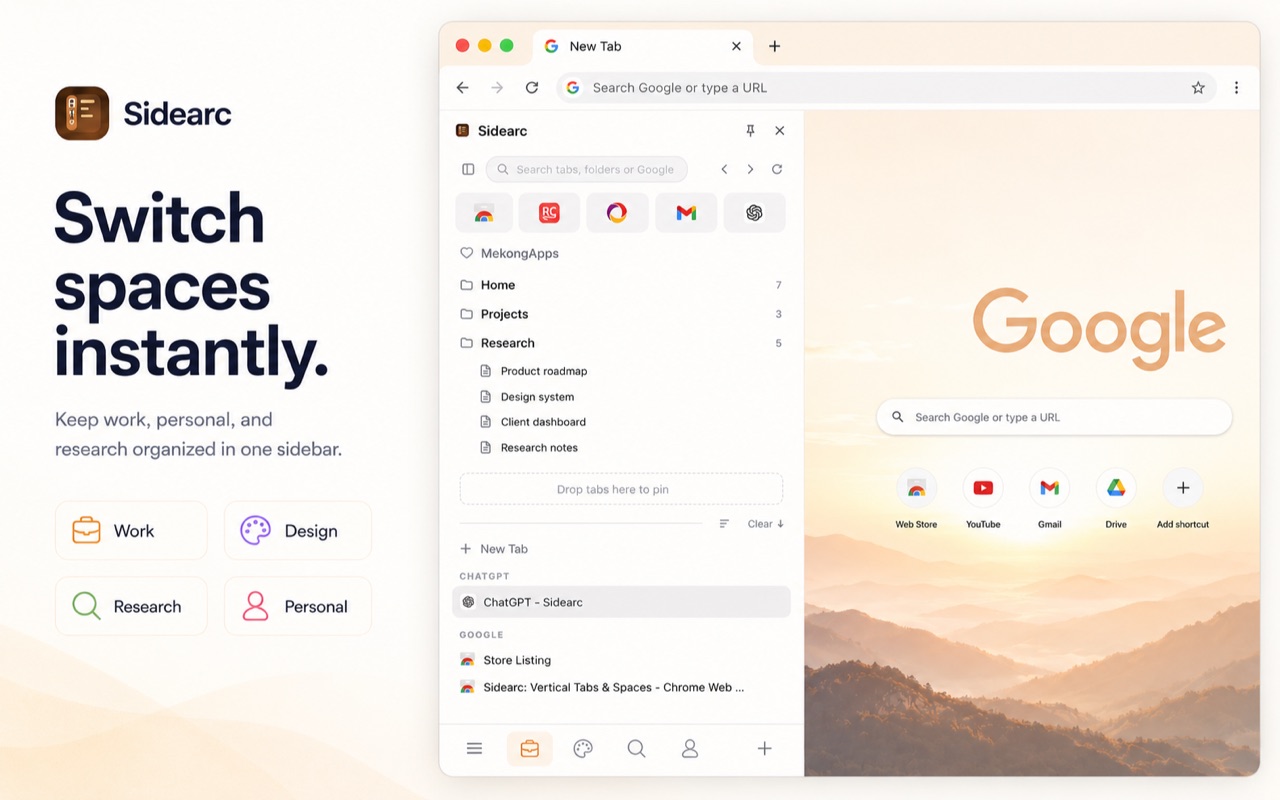
Save tabs into folders per space. Reopen with one click.
The problem with Chrome's default options
Chrome lets you bookmark tabs, group them, and reopen recently closed sessions. But bookmarks pile up without context, groups disappear when closed, and "recently closed" only works for the last few tabs. None of these give you a reusable project structure.
A better way to save recurring tabs
- Folders per space — save links into named, nested folders inside each workspace
- One-click open — click a saved link to open it in the current space
- Bookmark import — import existing Chrome bookmarks into workspace and folders
- Pins for always-on pages — keep core tools pinned at the top instead of saved in a folder
- Live + saved together — see your open tabs and saved folders in the same side panel
When to save vs when to keep open
If you'll need a tab in the next hour, keep it open. If it's a recurring reference you reopen across sessions, save it in a folder. If it's a core tool you use every day, pin it. A workspace panel makes all three coexist in the same panel.
FAQ
How do I save tabs in Chrome without turning bookmarks into a mess?+
Save them into folders by project instead of dumping everything into generic bookmark lists. That way the saved structure still reflects how you work.
What is the difference between saving tabs and pinning tabs?+
Pinned tabs stay open for frequent use. Saved tabs are stored for later so they do not take up space in your active workspace.
Can SideArc reopen saved tab setups?+
Yes. You can keep saved links in folders within each space and reopen them when that project becomes active again.
Is this better than Chrome's recently closed tabs?+
Yes for ongoing organization. Recently closed is temporary, while saved folders give you reusable project structure.