
How to organize tabs in Chrome
Tab cleanup never lasts because Chrome gives you one strip for everything. The fix isn't discipline — it's structure. SideArc splits your browser into spaces for separate projects, with folders, pins, and vertical tabs in a side panel.
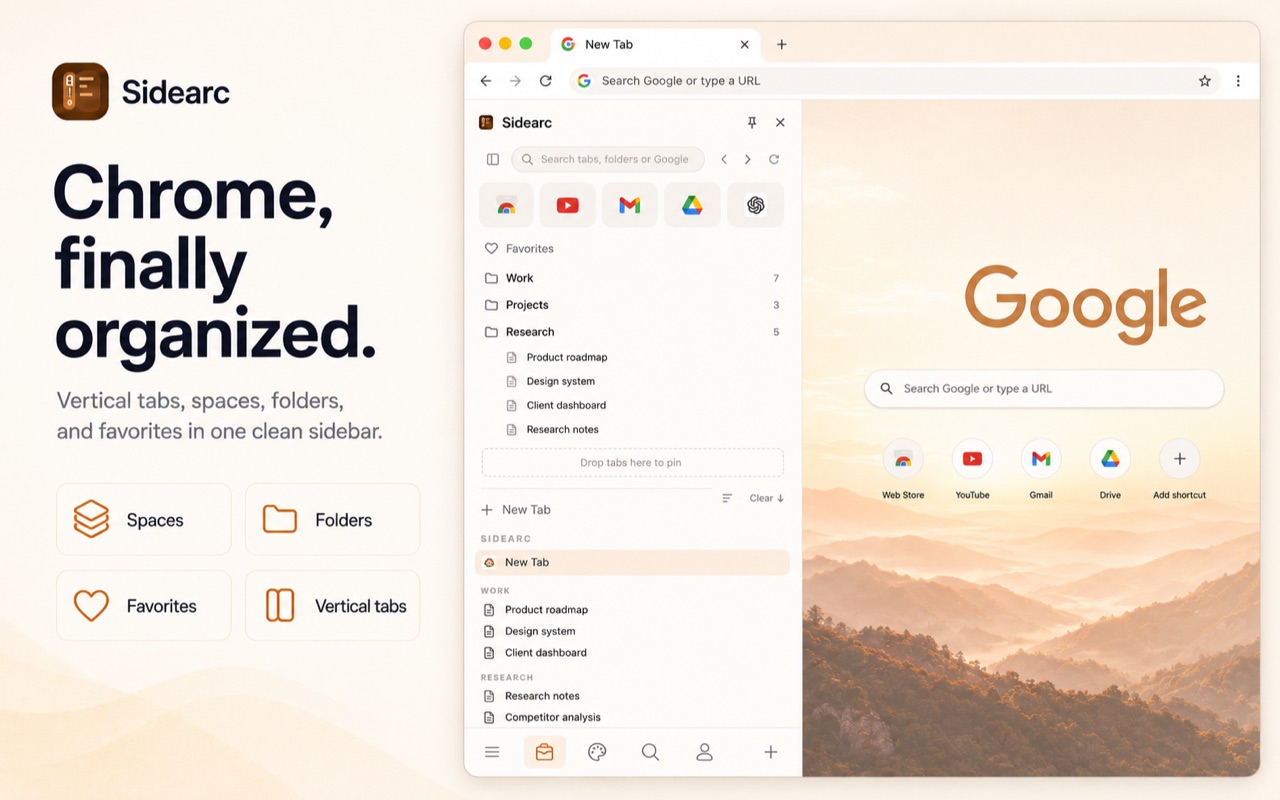
Split your browser into project spaces instead of one giant tab list
Step 1: split your browser into spaces
Identify the major contexts you switch between: work, research, admin, personal, client projects. Create a space for each. Tabs open in the current space and stay there. Switch spaces with a click or swipe.
Step 2: pin core tools
Calendar, inbox, docs, issue tracker, and dashboards should be pinned at the top of their space. They stay visible regardless of how many other tabs you open. Pin any tab or saved link there.
Step 3: save recurring links into folders
References, documentation, and project resources that you reopen regularly belong in folders, not the tab strip. A workspace extension should let you create nested folders per space and open saved links with one click.
Step 4: use vertical tabs for live work
Active tabs stay in a vertical list with full titles. You can drag to reorder, move between spaces, and close what you're done with. The side panel shows your live tabs alongside the page you're reading.
A starter setup
- Space 1: current work project (with pinned docs, tickets, dashboard)
- Space 2: research or reading
- Space 3: personal browsing and admin
- Folders for recurring resources in each space
FAQ
How do I organize tabs in Chrome without losing them?+
Separate active work into spaces, pin the tools you always need, and move recurring references into folders. That keeps the tab strip for live work instead of storage.
What is the fastest way to clean up too many Chrome tabs?+
Start by splitting tabs into a few clear contexts like Work, Research, and Personal. Then pin essentials and save the rest into folders instead of leaving everything open.
Should I use bookmarks or tab groups to organize tabs?+
Bookmarks are better for long-term storage and tab groups are better for short-term clustering. SideArc combines both ideas with live spaces plus saved folders.
Can SideArc keep work and personal tabs separate?+
Yes. Each space has its own active tabs, pins, and saved folders, so projects don't bleed into each other.