How to pin tabs in Chrome
Chrome's pinned tabs are useful for one or two always-on tools. But once you pin 5+ tabs, they crowd the strip and mix contexts. SideArc lets you pin tabs per space — your Work pins don't clutter your Personal space.
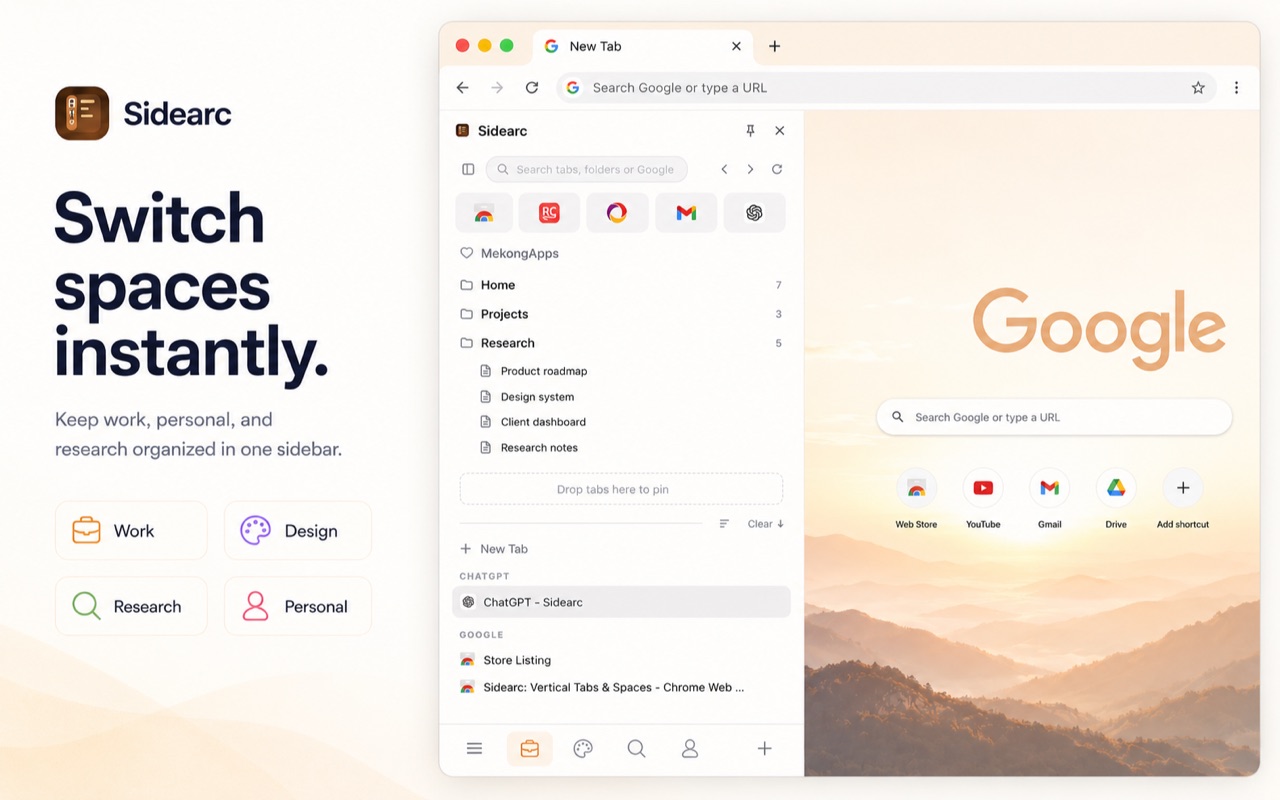
Pin core tools at the top of each space
What Chrome pinned tabs do
Right-click a tab and select "Pin." It shrinks to a favicon and sticks to the left of the tab strip. This works for one or two global tools. The problem: pinned tabs are global. They appear in every context and take space from every project.
A better workflow
- Pins per space — pin tabs inside a specific workspace. Work pins stay in Work
- Full title visible — pinned tabs show their full name in the vertical list, not just a favicon
- Separate from live tabs — pins sit at the top of the space, clearly separated from active work
- Favorites — mark frequently used pins as favorites for even faster access
What to pin and what not to pin
Pin: tools you use every day regardless of project — calendar, inbox, docs, task board.
Don't pin: project-specific tabs. Those belong in a space or folder so they don't clutter other contexts.
FAQ
What is the best way to use pinned tabs in Chrome?+
Pin only the tools you truly need all the time, like inbox, calendar, docs, or dashboards. Too many pinned tabs defeats the point.
Why do pinned tabs still feel cluttered in Chrome?+
Because they live in one global strip. SideArc improves this by letting you pin tabs per space instead of across every context.
Can SideArc keep different pinned tabs for Work and Personal?+
Yes. Pins are space-specific, so work tools stay in Work and personal tabs stay in Personal.
Should I pin tabs or save them into folders?+
Pin tabs you open constantly. Save tabs into folders when they matter but do not need to stay open all day.