Guide
How to manage 100 tabs in Chrome
At 100 tabs, Chrome's tab strip is just a row of favicons. The problem isn't that you have too many tabs — it's that Chrome gives you no structure for them. SideArc splits tabs into spaces, shows them vertically with full titles, and adds folders and pins.
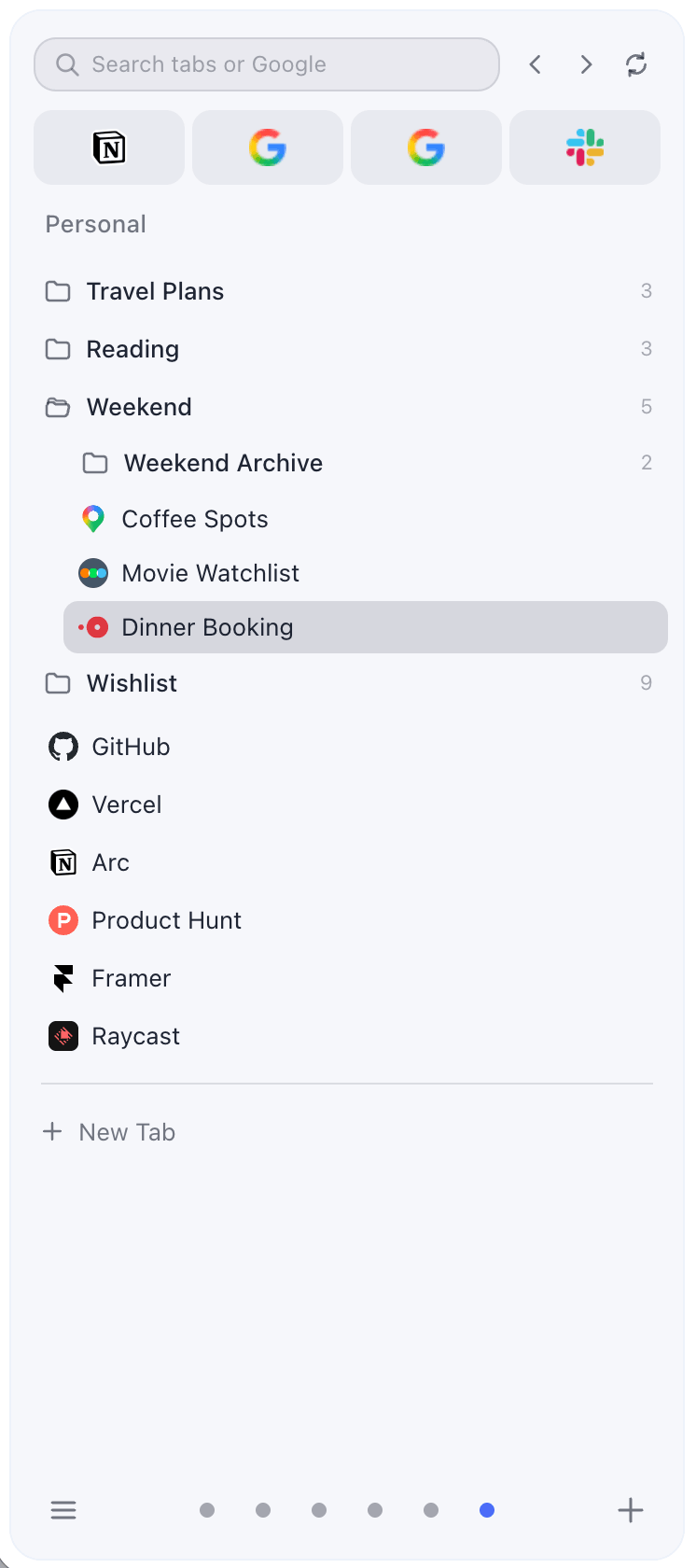
100-tab system
100 tabs split into spaces with full titles. No more favicon hunting.
Step 1: stop treating all tabs as equal
Some tabs are core tools you use every day. Some are active tasks. Some are references. Some are leftovers. SideArc lets you categorize them: pin core tools, save references into folders, and keep active work as live tabs in the right space.
Step 2: split by project
Create spaces for your major contexts: Work, Research, Admin, Personal. Each space shows only its own tabs. Switching spaces is one click or swipe. Your 100 tabs become 4 groups of 25 — manageable.
Step 3: use vertical tabs
SideArc shows each tab with its full title in a vertical list. Scanning 25 tabs vertically with full titles is fast. Scanning 100 tabs horizontally as tiny favicons is impossible.
Step 4: save what you don't need right now
References and recurring links belong in folders, not the tab strip. SideArc lets you save any tab into a folder with one click. Close the tab, keep the link organized. Reopen later when needed.
Related: organize tabs in Chrome, Chrome tab manager.