Guide
Chrome tab manager
The best Chrome tab manager depends on the job. If your problem is active tabs from different projects mixed into one strip, separate them with spaces, vertical tabs, folders, and pins inside Chrome's side panel.
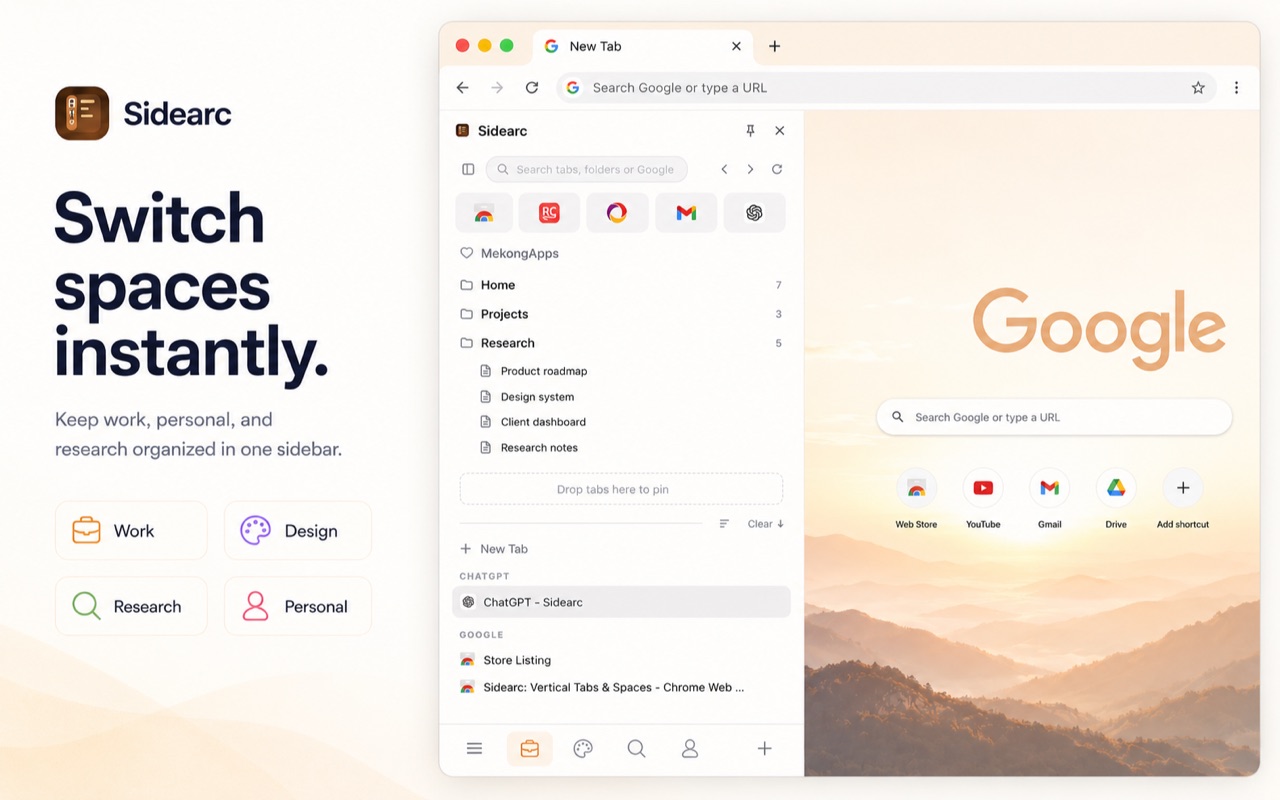
Tabs organized by project with pins, folders, and drag-and-drop
What to look for in a tab manager
- Live tab management — not just saved sessions, but real-time organization of open tabs
- Project separation — spaces or contexts so work, research, and personal tabs don't mix
- Pinned resources — keep core tools visible regardless of what else is open
- Readable layout — full tab titles, not truncated favicons
- Drag-and-drop — move tabs between projects without right-click menus
A practical setup
A tool like SideArc turns Chrome's side panel into a tab manager with vertical tabs, spaces for separate projects, folders for saved links, and pinned tabs for core tools. Every tab shows its full title. You can drag tabs between spaces, save links into folders, and switch contexts with a swipe.
This page is about management, not just layout
If your main problem is that Chrome tabs are too small to read, vertical tabs are enough. If the bigger problem is too many live tabs from different projects mixed together, you need project separation, saved references, and pinned tools.
Why Chrome's default tools aren't enough
Tab groups help cluster tabs but still live in the horizontal strip. Bookmarks save links but don't manage live tabs. Pinned tabs persist but get buried. The cleanest setup combines grouping, saving, and pinning into one side panel for live work.
FAQ
What is the best tab manager for Chrome?+
The best option depends on whether you need session restore or live tab organization. SideArc is built for live tabs, with spaces, folders, pins, and a vertical side panel.
How is SideArc different from a session manager?+
Session managers save and reopen tab sets later. SideArc helps while work is active by keeping open tabs organized by project in real time.
Can I move tabs between projects in SideArc?+
Yes. You can drag tabs between spaces, reorder them, and save recurring resources into folders so project contexts stay separate.
Does SideArc replace Chrome's normal tabs?+
No. Chrome's top tab strip still exists. SideArc adds a better navigation and organization layer in the side panel.